Wordpress
An Example for a simple docker compose setup. To start a Wordpress application with a database and browser access.
Table of Contents
Description
A simple demo showing how docker compose works with multiple services.
Services included:
- WordPress    #Application
- Mariadb      #Database
- Adminer      #Database GUI
Prerequisites
Repository Structure
wordpress_example/
├── docker-compose.yml                  # Docker container setup
├── img/                                # All Images (Screenshots)
├── .env.example                        # All environment variables
├── .gitignore                          # Ignore rules for Git
├── README.md                           # Project overview and navigation
└── Wordpress_Checkliste.pdf            # Checklist_DA
Quickstart
- Download the project:
git clone https://github.com/GeorgStrassberger/wordpress_example.git
- Navigate into the project folder
cd ./wordpress_example
- Create your .env file
cp .env.example .env
- Change the environment variables
# Copy this file to .env and fill in the values
# WordPress Example Environment Variables
WORDPRESS_DB_HOST=mariadb:3306
WORDPRESS_DB_NAME=wordpress
WORDPRESS_DB_USER=wp_user           #Your Username
WORDPRESS_DB_PASSWORD=wp_pass       #Your Password

# MariaDB Environment Variables
MYSQL_DATABASE=wordpress
MYSQL_USER=wp_user                  #Your Username
MYSQL_PASSWORD=wp_pass              #Your Password
MYSQL_ROOT_PASSWORD=root_pass       #Your Root Password
- Pull Docker images and start the containers
docker compose up -d
docker compose: container groupup: Start all container-d: detached mode (runs in the background)
-
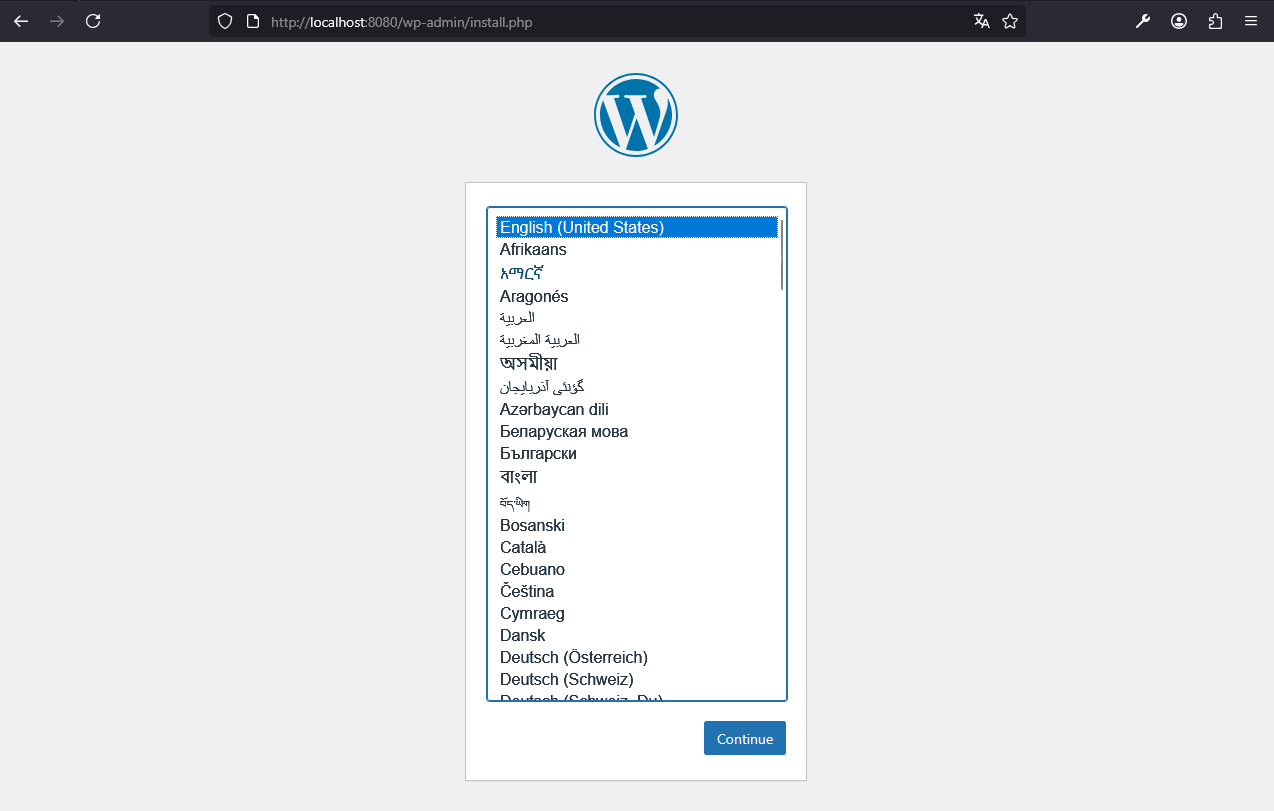
Open your browser to access WordPress on http://localhost:8080
-
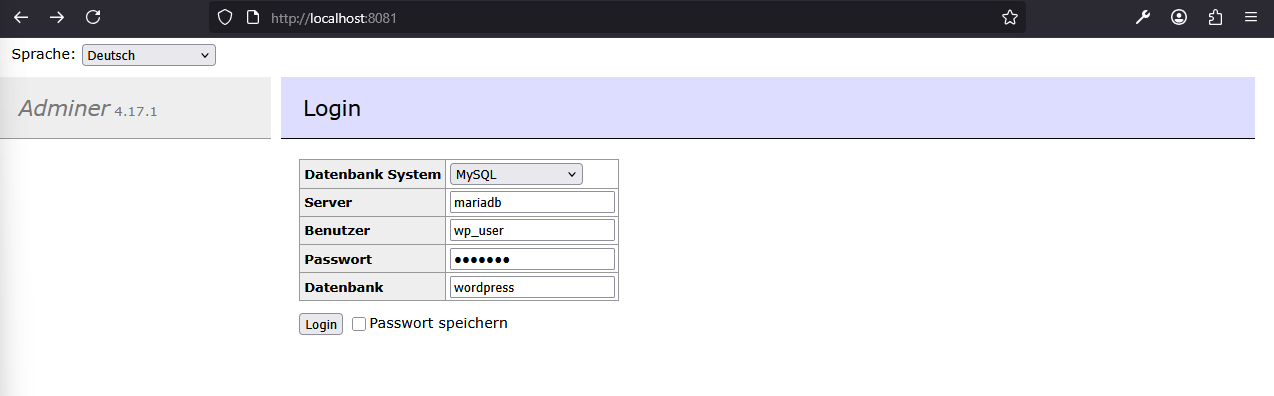
Open your browser to access Adminer on http://localhost:8081
-
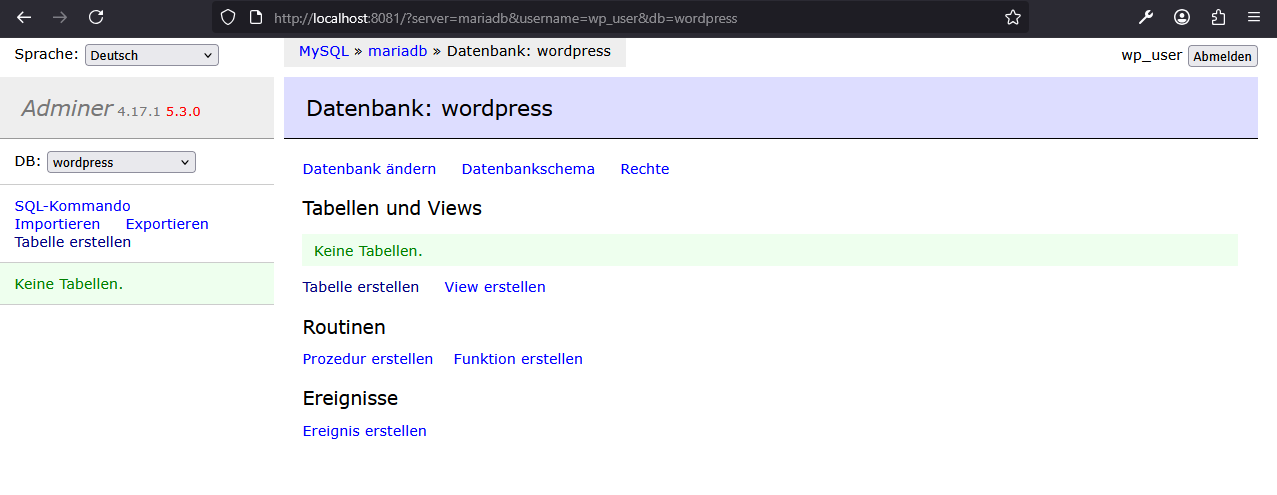
Adminer Login
-
Stop and remove the containers and volumes
docker compose down -v
docker compose: container groupdown: stop and remove all containers-v: also remove volumes (data)
Usage
After starting the containers, you can:
- Access WordPress
- URL: http://localhost:8080
- Complete the initial WordPress setup wizard (choose site name, admin user, password)
- Access Adminer (Database GUI)
Normal User Login:
User-Login (user access):
System:         MySQL       #DB type
Server:         mariadb     #Docker service name of the database container
Username:       wp_user     #MYSQL_USER
Password:       wp_pass     #MYSQL_PASSWORD
Datenbank:      wordpress   #MYSQL_DATABASE
Root Login:
Root-Login (administrator access):
System:         MySQL       #DB type
Server:         mariadb     #Docker service name of the database container
Username:       root        #MYSQL_USER
Password:       root_pass   #MYSQL_ROOT_PASSWORD
Datenbank:      (empty)
Author
  ██████╗   ███████╗   ███████╗  █████████╗
 ██╔════╝   ██╔════╝  ██╔═════╝  ╚══██╔═══╝
 ██║  ███╗  █████╗    ╚█████╗       ██║
 ██║   ██║  ██╔══╝     ╚═══██╗      ██║
 ██║   ██║  ██║             ██╗     ██║
 ╚██████╔╝  ███████╗   ███████║     ██║
  ╚═════╝   ╚══════╝   ╚══════╝     ╚═╝